Systam Rooms meeting room displays digitize and modernize the use of meeting rooms, making work seamless and efficient. The displays are integrated into the customer's Microsoft 365 environment or Google environment. The service operates based on Microsoft exchange room resources and Google calendar resources, which provide all the necessary information for displaying reservation details and maintaining permissions.
To make your shared rooms available for booking through the Systam Rooms service, you need to add them as resources and allow our service access to them.
This article covers set-up process for Microsoft 365 environment.
In this article, you can:
- Create room resources
- Create a service account
- Grant permission to room list and service account
- Link, add space and set up your Systam Rooms device
- Creating room resources
Systam Rooms is built on Microsoft 365 room resources. To make shared rooms available for booking, they must be created as resources in your Microsoft 365 environment. This ensures the service can access the required information and display reservation details correctly.
(You can skip this section if the required room resources already exist in your Exchange environment.)
Start by logging in with your administrator account to the Exchange admin center at
https://outlook.office365.com/ecp/
From the left-hand menu, go to Recipients (1), Resources (2), and add a new resource by clicking on Add a room resource (3).
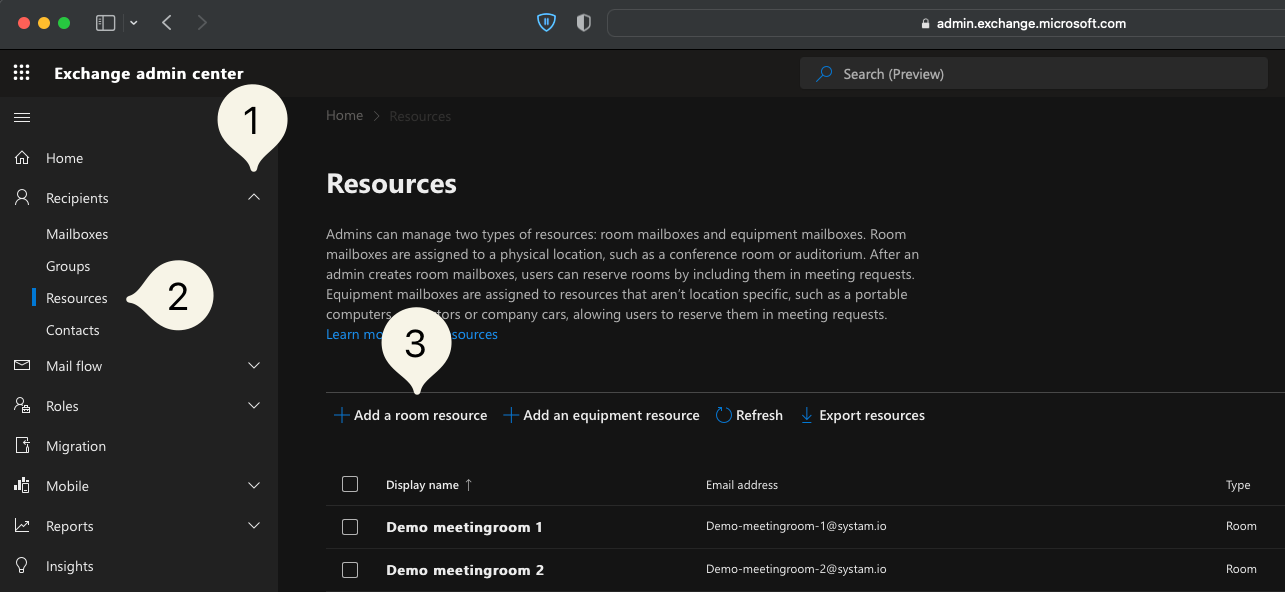
When creating a room, you need to provide a name and an email address for the resource. You can also set up rules, how meeting room accept invitations. Ensure that all bookable rooms are created as resources before proceeding with the Systam Rooms setup.
- Creating the service account
A dedicated service account is required for Systam Rooms to access your Microsoft 365 environment.
Log in with your admin account to the Microsoft 365 admin center at the following address: https://admin.microsoft.com/AdminPortal/Home?#/homepage
Go to Users > Add user (1). If you already have the User management card on the homepage, you can directly click on Add user (2).

Create the service account by filling in all the required fields. You can set the username as meetingrooms@domain.com as an example. Remember to set a secure password for the new user.

Assign an Exchange Online (Plan 1) license to the service account, as it is required for the user to be utilized.

Finally, ensure that the user role is set to User: no administration access, to restrict any initial access rights to your O365 environment. You have now created the service account.

- Granting permissions to room list and service account
Sign in as the administrator (Admin) at https://outlook.office365.com/ecp/ and go to Recipients (1) > Resources (2). In this view, you will see a list of all room resources available in the system.Go through each room you want to grant permissions for individually and give the service account Send as and Full Access rights.

To do this, open the desired room resource (3) and select Delegation > Send as > Edit.

Use the search function to find the service account and grant it permissions in the adjacent box. Press Add to finalize.

Repeat the above with Read and manage (Full Access) > Edit.
Make sure both permissions (Send as and Full Access) have been granted, and repeat this process for each room resource until all desired rooms have been granted permissions.
- Linking device, creating new spaces and setting up Systam Rooms device
Once all the preparatory steps have been completed, it's time to proceed with the actual setup of the devices.
-Log in to app.systam.io using your own credentials.
-Navigate to Rooms > Calendar providers.
Here, you will perform the Enterprise Application authorization. To begin, click Sign in with Microsoft (Or Sign in with Google, if you are setting up an Google integration), and this will open an Microsoft login prompt. Sign in with your service user credentials, and if everything goes smoothly, the site will then appear as follows:
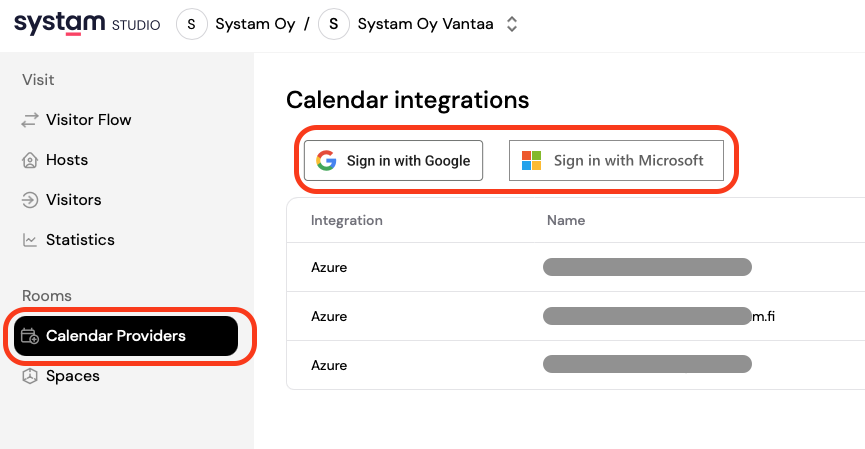
You will see what permissions are needed before accepting this. Our permissions are:
-Sign in and read user profile.
-Read and write calendars in all mailboxes.
Once the calendar provider has been completed, the next step is to create the correct Space and link the devices to the system.
Create a New Space
Before connecting any devices, you must first create the Space in the Studio.
1. Navigate to Spaces
2. Select Add Space
When creating the Space:
Enter the room name where the Rooms device will be installed.
Provide the email address associated with that room resource (created in Microsoft 365).
You can link multiple Rooms displays to the same Space.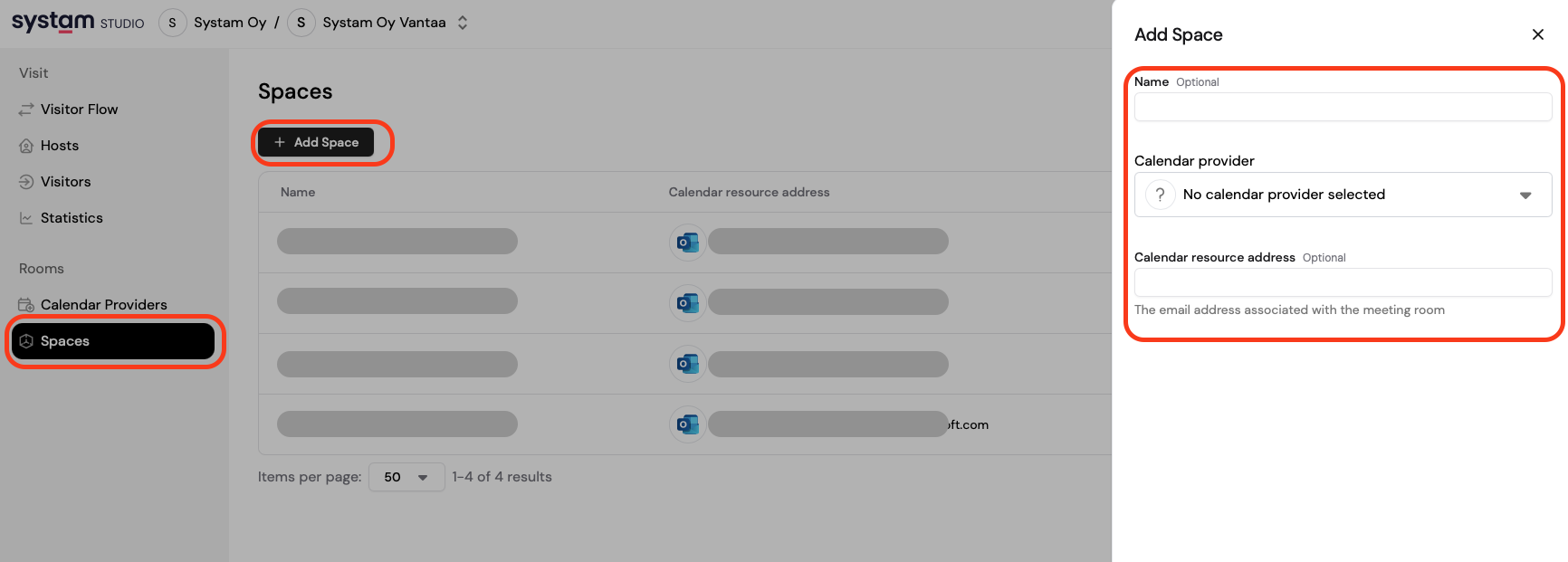
After this, go to the Devices tab on the left and select Room displays and Add display.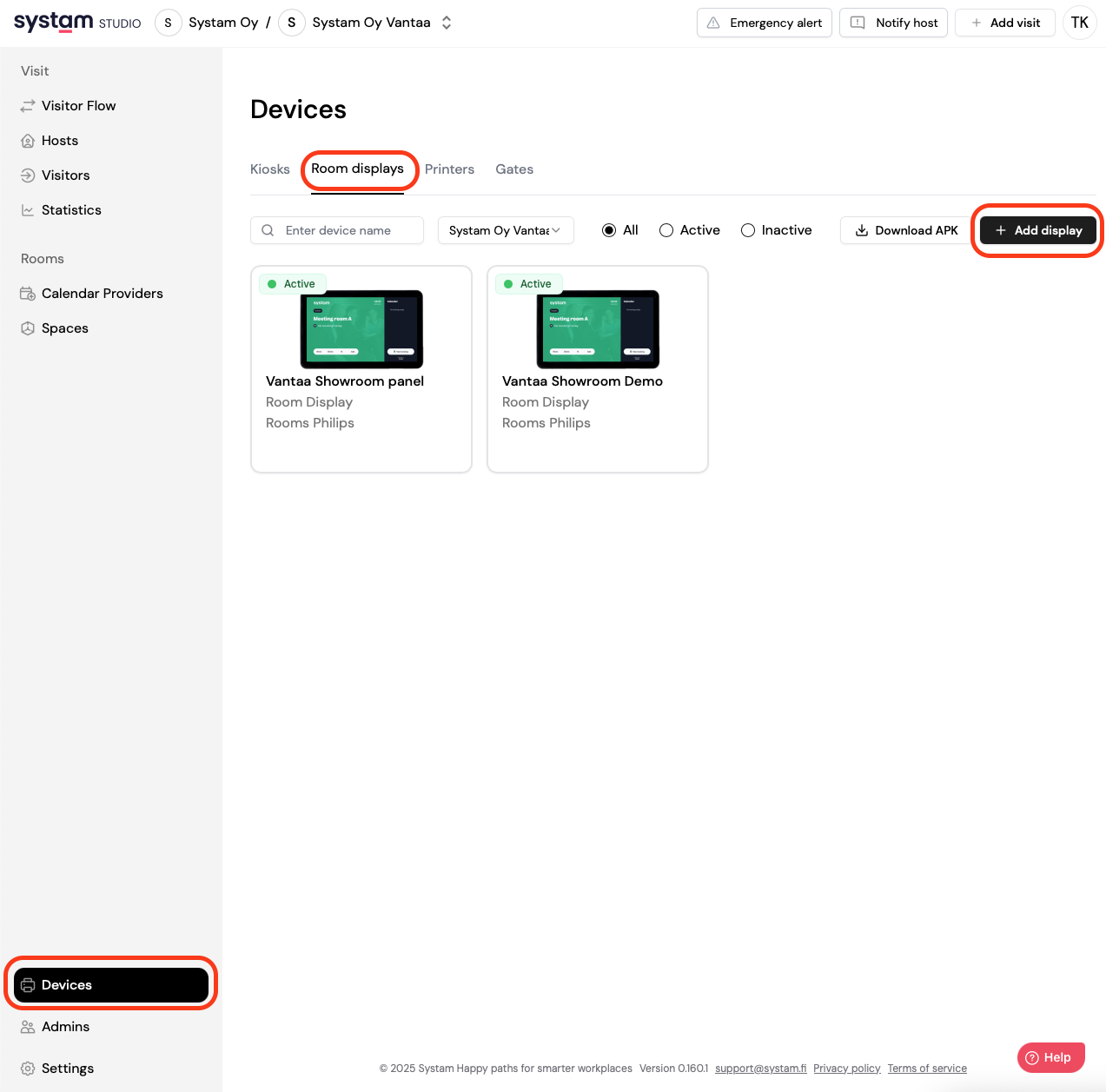
Provide a descriptive name for the device and select the previously created space for this device.
After this, you will see the device's PIN code, which the physical display will request during its initial setup.
From the Device Customization tab, you can configure device-specific settings:
- Device language selection
- Allowing room reservations directly from the display
- Displaying the event title for reservations
- Displaying the name of the person who made the reservation
- Do you have to confirm your booking
Was this article helpful?
That’s Great!
Thank you for your feedback
Sorry! We couldn't be helpful
Thank you for your feedback
Feedback sent
We appreciate your effort and will try to fix the article