If you use Microsoft Entra ID, you can connect your directory to Systam Studio. After that, you no longer need to create Systam Visit hosts manually. This guide explains how to enable automatic user synchronization with Microsoft Entra ID.
Note: This extension is a paid add-on and requires activation. Contact our support team at support@systam.io.
Once the setup is complete, Microsoft Entra ID can:
- create users, meaning hosts, in Systam Studio
- update user details in Systam Studio, such as primary workspace, name, email addresses, phone numbers, and active status
- delete users permanently from Systam Studio when access is no longer needed
- keep user data synchronized between Microsoft Entra ID and Systam
Read more about Entra ID and provisioning: What is automated app user provisioning in Microsoft Entra ID.
Microsoft Entra ID runs the sync roughly every 40 minutes, so a change made in Entra can take a little while to reach Systam.
Important things to note
Prerequisites
Before you start, you need the following:
- a Microsoft Entra tenant
- a Microsoft Entra ID user account with permission to configure provisioning, for example Application Administrator, Cloud Application Administrator, Application Owner, or Global Administrator
- a Systam organization account at app.systam.io and a user account with Organization Owner permissions
Other notes
- Organization Owners are protected. Systam never deletes a user with the Organization Owner role, even if Entra ID removes them from the synced scope. Only the SCIM link between that user and Entra ID is removed — the account and its access stay intact.
- Soft delete is not supported. Systam does not support suspended or soft delete status. When a user is removed from synchronization or disabled in Entra ID, Systam deletes the user account permanently. If the user is later added back to synchronization, they are created again as a new user.
- Matching logic. Provisioning first looks for an existing user in the same organization with the same SCIM
userName. If none is found, it looks system-wide for a user with the same work email address. Otherwise, Systam creates a new user. Microsoft Entra ID’s internal object ID is never used for matching. - Groups don’t grant roles or permissions. Provisioned groups only affect primary workspace assignment (see Step 6) — they never change what a user can do in Systam.
Step 1: Plan the provisioning setup
- Learn how the provisioning service works.
- Define who is included in provisioning.
- Define which data is mapped between Microsoft Entra ID and Systam.
Step 2: Prepare in Systam Studio
Preparation
- Open Systam Studio and go to Extensions → Microsoft Entra ID. Select Enable.
- Copy the values shown in Studio for Tenant URL and Secret Token. You will need them for the Entra ID setup.
- You can also enter your organization’s Tenant ID if you want. This helps with troubleshooting.
- You can’t generate a new Secret Token yourself. If you ever need one reissued — for example if it’s been exposed — contact Systam support.
Set the synchronization options
In Systam Studio, choose how employees are added to workspaces. You can sync hosts either to one workspace only (primary workspace) or to all workspaces. If you choose all workspaces, employees will still always have a primary workspace. Choose the option that fits your organization before you start provisioning.
- Primary workspaces
Sync hosts to one workspace only.
- All workspaces
Sync hosts to all workspaces.
Note: If you later change the setting to Primary workspaces, hosts are not removed automatically from other workspaces.
Step 3: Add Systam to Microsoft Entra ID
- Sign in to the Microsoft Entra admin center as an administrator.
- Go to Identity → Applications → Enterprise applications.
- Select New application.
- Select Create your own application.
- Give the application a name, for example Systam.
- Select Integrate any other application you don't find in the gallery (Non-gallery).
- Select Create.
Step 4: Define who is included in provisioning
With the Microsoft Entra provisioning service, you can define who is provisioned to the application. You can limit provisioning either by assignments made to the application or by user or group attributes. If you use application assignments, you can define users and groups with this guide: Assign users and groups to an application.
- Start small. Test first with a small set of users and groups.
- When the provisioning scope is set to assigned users and groups, you can roll out the setup in steps.
Step 5: Enable automatic synchronization
In this section, you configure the Microsoft Entra provisioning service to create, update, and delete users in Systam.
5.1 Admin Credentials
- Open the Provisioning tab in the Systam application in Entra ID.
- Go to Manage → Provisioning and set Provisioning Mode to Automatic.
- Enter the values shown in Systam Studio:
- Tenant URL
- Secret Token
- Select Test Connection to verify the connection.
If the test fails:
- make sure the token was copied correctly
- check that there are no extra spaces
5.2 Attribute mappings
Systam uses a limited set of Microsoft Entra ID user attributes for provisioning. These mappings are configured on the Provisioning tab of the Systam enterprise application.
Identity and status
userName
- A unique identifier for the user in Systam.
- The value comes from the source attribute you define for the
userNamemapping, usually a sign-in name such as UPN or email address.
active
- Defines whether the user account is active in Systam.
- The value is based on the expression defined in the
activemapping.
Contact details
Systam only uses contact details from Microsoft Entra ID when the type is set to work or other. Other types are rejected and may cause provisioning to fail for that user.
- Email addresses
- The attribute mapped to
emails[type eq "work"].valuebecomes the user’s primary email address in Systam. - A work-type email address is required. If the user does not have a work-type email address, provisioning fails for that user.
- The attribute mapped to
- Phone numbers
- If you choose to map phone numbers,
phoneNumbers[type eq "work"].valuebecomes the user’s primary phone number in Systam. - A work-type phone number is required if phone numbers are mapped.
- If you do not want to manage phone numbers in Systam, leave phone numbers completely unmapped.
- If you map phone numbers, make sure all users in scope have a work-type phone number.
- Systam converts the phone number to international format automatically, using your workspace’s country as the default (Finland unless configured otherwise).
- If you choose to map phone numbers,
In practice:
- the work email address is always the user’s primary email address in Systam
- when phone numbers are mapped, the work phone number is the user’s primary number in Systam
Example mapping configuration
| Systam attribute | Microsoft Entra ID attribute (example) | Required |
|---|---|---|
userName | userPrincipalName | Yes |
active | Switch([IsSoftDeleted], , "False", "True", "True", "False") | Yes |
name.givenName | givenName | Yes |
name.familyName | surname | Yes |
emails[type eq "work"].value | Coalesce(mail, userPrincipalName) | Yes |
emails[type eq "other"].value | first([otherMails]) | No |
phoneNumbers[type eq "work"].value | mobile | No |
phoneNumbers[type eq "other"].value | telephoneNumber | No |
preferredLanguage | preferredLanguage | No |
Step 6: Define the primary workspace
Each employee must have a primary workspace. The primary workspace is used as a default value in different functions. There are three ways to define it.
If a user ends up with no primary workspace at all, Systam still creates the account, but the user won’t appear in Studio and can’t sign in until a workspace is assigned.
Workspace assignment is sticky: removing a user from a group doesn’t remove them from the workspace, and the primary workspace only changes when Entra ID sends a new value. When that happens, the user is added to the new workspace — they aren’t removed from the previous one.
Note: When provisioning adds a user to a workspace for the first time, that workspace’s Uninvited visitors setting is turned on automatically. Workspaces the user was already part of aren’t affected.
6.1 Set one primary workspace for all users
If you want to assign only one main workspace to hosts, this is the most reliable option.
Continue from Step 5 by adding one more custom attribute, urn:ietf:params:scim:schemas:extension:systam:2.0:User:primaryWorkspace, which defines the user’s primary workspace.
Add the attribute to the schema
- Open the Provisioning tab for the Systam application in Entra ID, then open Attribute Mapping.
- Select Provision Microsoft Entra ID Users.
- Scroll to the bottom of the page and select Show advanced options.
- Select Edit attribute list for Systam (or the application name you chose).
- Add a new attribute at the end of the list:
- Name:
urn:ietf:params:scim:schemas:extension:systam:2.0:User:primaryWorkspace - Type:
string
- Name:
- Select Save.
Map the workspace to a constant value
- Return to the Attribute Mapping view.
- Add a new workspace mapping:
- scroll to the bottom of the list and select Add New Mapping
- Mapping type: Constant
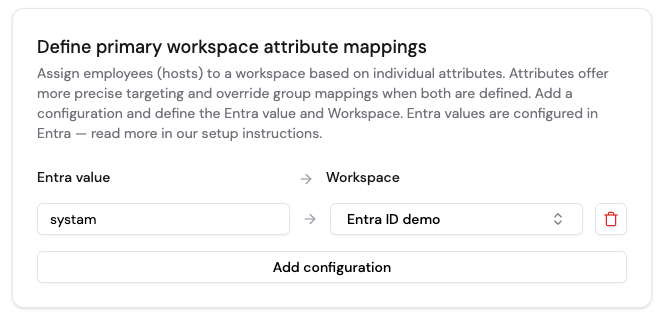
- Constant Value: enter the value that Systam will use, for example
systam - Target attribute: select the custom attribute
urn:ietf:params:scim:schemas:extension:systam:2.0:User:primaryWorkspace
- Select OK.
- Select Save.
Set it in Studio
- Open Systam Studio and go to Extensions → Microsoft Entra ID.
- Scroll down to Define primary workspace attribute mappings.
- Click Add configuration and enter the constant value you defined earlier.
- Select which workspace should be the primary one and save the changes.
- Done. Continue to Step 7.
6.2 Set the primary workspace based on an Entra group
If you want to assign the main workspace based on an Entra group, do it like this.
- Define which groups are in scope for provisioning and save the group IDs.
- Open Systam Studio and go to Extensions → Microsoft Entra ID.
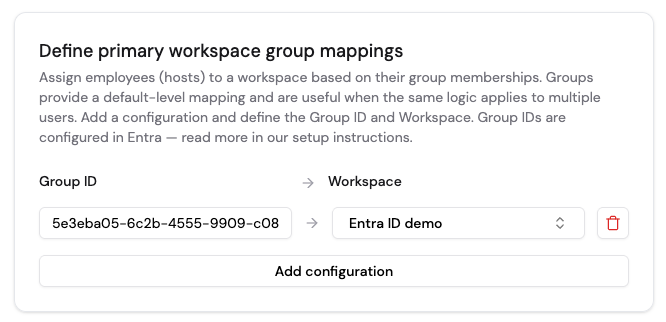
- Scroll down to Define primary workspace group mappings.
- Click Add configuration and enter the provisioned group ID in the first field.
- Select which workspace should be the primary one.
- Repeat until every provisioned group is mapped to the correct workspace.
- Save the changes.
- Done. Continue to Step 7.
6.3 Set the primary workspace based on an attribute
If you want to assign hosts very precisely to different workspaces based on a specific attribute, such as office location or country, use this option.
This setup can be used together with Entra group mapping. The integration checks the attribute first and only then checks the Entra group data. The group value is ignored if the primary workspace is found from the attribute.
Continue from Step 5 by adding one more custom attribute, urn:ietf:params:scim:schemas:extension:systam:2.0:User:primaryWorkspace, which defines the user’s primary workspace.
Add the attribute to the schema
- Open the Provisioning tab for the Systam application in Entra ID, then open Attribute Mapping.
- Select Provision Microsoft Entra ID Users.
- Scroll to the bottom of the page and select Show advanced options.
- Select Edit attribute list for Systam (or the application name you chose).
- Add a new attribute at the end of the list:
- Name:
urn:ietf:params:scim:schemas:extension:systam:2.0:User:primaryWorkspace - Type:
string
- Name:
- Select Save.
Add the workspace mapping
- Return to the Attribute Mapping view and review the default mappings.
- Add a new workspace mapping:
- scroll to the bottom of the list and select Add New Mapping
- Source attribute: select the Entra ID attribute you want to use for the user’s primary physical location or workspace, for example
department,officeLocation, or an extension attribute - Target attribute: select the custom attribute
urn:ietf:params:scim:schemas:extension:systam:2.0:User:primaryWorkspace
- Select OK.
- Select Save.
Set it in Studio
- Open Systam Studio and go to Extensions → Microsoft Entra ID.
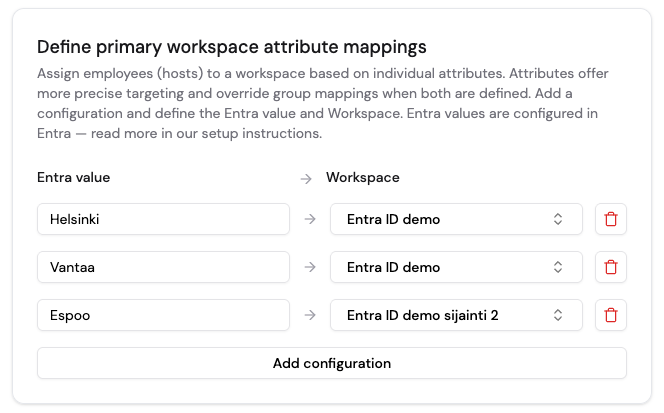
- Scroll down to Define primary workspace attribute mappings.
- Click Add configuration and enter a value that may come from the attribute you mapped earlier.
- Select which workspace should be the primary one and save the changes.
- Repeat until every value you want has been mapped.
- Done. Continue to Step 7.
Step 7: Test and start synchronization
Test a single user
- Select Provision on demand.
- Select a test user.
- Run the action.
Enable automatic synchronization
- Set Provisioning status to On.
- Select the scope you want to use.
Monitor the status
- Check the provisioning logs.
- Monitor the provisioning status.
Common errors in the provisioning logs
| Error | What it means | What to do |
|---|---|---|
| 401 Unauthorized | The Secret Token in Entra ID doesn’t match the one in Studio. | Copy the current Secret Token from Studio into Entra ID again. More than about 20 failed attempts in a minute triggers a short-lived block. |
| 403 Forbidden | The user’s work email is already used by a user in a different Systam organization. | Contact Systam support to sort out which organization should own that user. |
| 409 Conflict | The SCIM userName is already linked to a different user in this organization. | Contact Systam support to check the existing link. |
| 400 Bad Request — “primaryWorkspace not mapped” | The value sent for primaryWorkspace doesn’t match any of your mappings. | Add a mapping for the value, or set a default workspace. |
Microsoft Entra ID automatically retries failed operations on its next sync cycle, so a corrected mapping or token usually resolves the error without any extra steps.
Turning off the integration
In Systam Studio, go to Extensions → Microsoft Entra ID and select Stop using the extension. This stops synchronization and removes the integration from Systam.
It doesn’t remove the enterprise application from your Microsoft Entra tenant — if you no longer need it there, remove it yourself in the Entra admin center.
Current limitations
- Group names should be unique in Entra ID. Provisioning matches existing groups by name, so duplicate names can cause a group mapping to point to the wrong group.
- Synced fields can’t be overridden per user. Microsoft Entra ID always overwrites them on the next sync.
More information
Was this article helpful?
That’s Great!
Thank you for your feedback
Sorry! We couldn't be helpful
Thank you for your feedback
Feedback sent
We appreciate your effort and will try to fix the article