This guide shows you how to insert or replace the visitor badge printer roll, reset the badge counter and get notified when badges are running low.
The most common badge size is 62 x 100 mm, and one roll holds 300 badges.
Inserting or replacing a roll
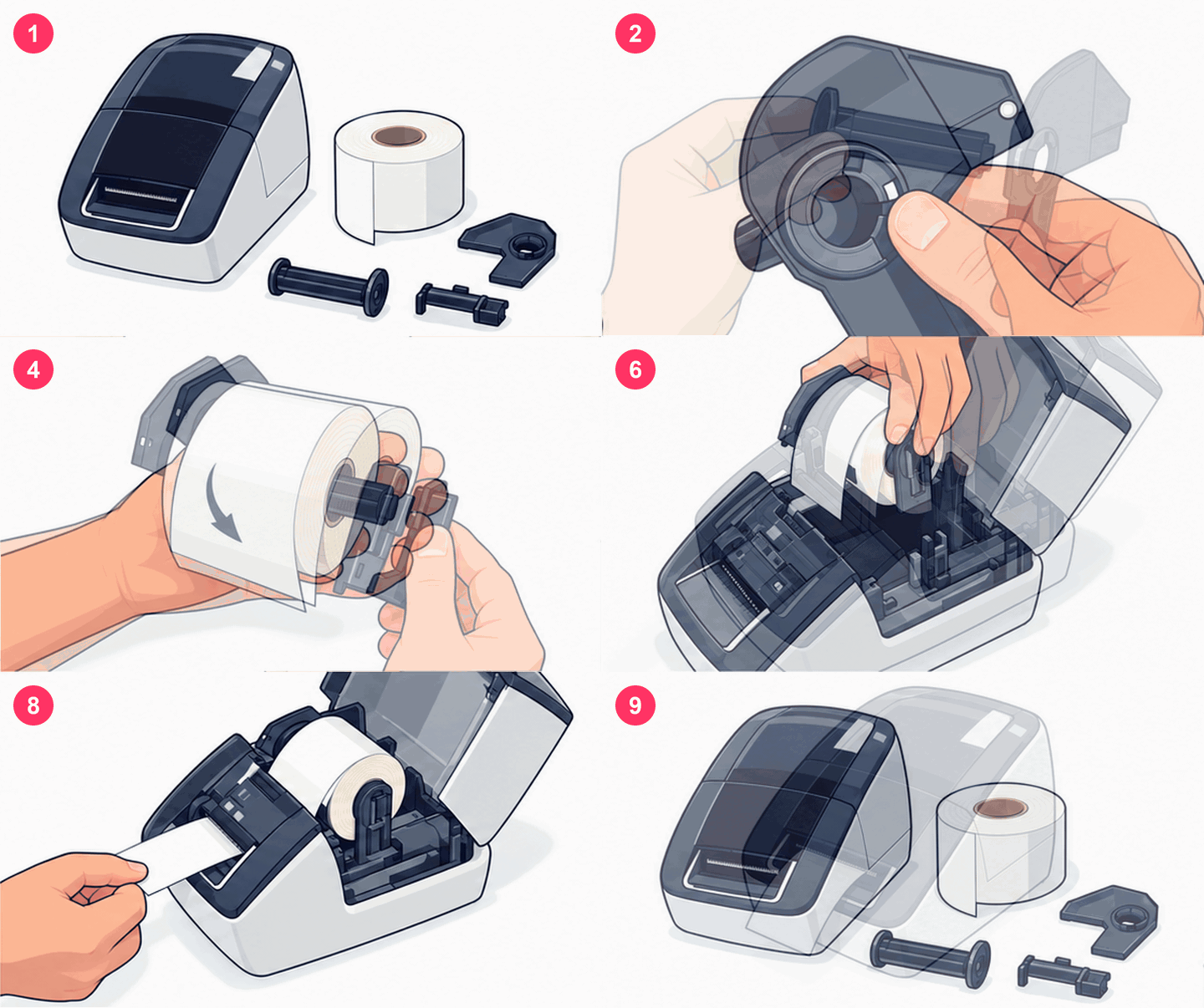
- Take the printer apart so that you have the printer, the roll and parts A, B and C in front of you.
- Push part A through the hole in part B.
- The two parts line up with a small notch.
- Slide the roll onto part A and line up part C with the notch.
- Once the parts are together, check that the roll turns the right way.
- Open the printer lid and lower the roll into the compartment.
- Slide part C into the joint in the printer.
- Feed the end of the roll through the opening inside the printer so that it comes out the front.
- Close the lid.
If the printer is connected to a self-service kiosk, reset the badge counter next. This keeps the roll status accurate.
You can also download the illustrated guide as a printable PDF: How to insert badges.
Resetting the badge counter
- Double-tap the logo at the top center of the kiosk. The maintenance view opens.
- Here you can see the badge counter for the connected printer.
- Press Reset counter.
Getting notified when badges run low
You get a notification when 20% and 10% of the roll is left. Once the roll runs out, a notification is sent with every new sign-in. To choose who gets the notifications:
- Log in to Systam Studio at app.systam.io.
- Select Settings from the left-side navigation.
- Select Notifications.
- Scroll down to Printer notifications and choose who is notified.
Note: if the printer is connected to the reception computer instead of a kiosk, no notifications are sent. In that case it's a good idea to keep an eye on the roll yourself.
All set, you're ready to roll!
Was this article helpful?
That’s Great!
Thank you for your feedback
Sorry! We couldn't be helpful
Thank you for your feedback
Feedback sent
We appreciate your effort and will try to fix the article